9.7.4 Leash CodeHS Answers: Complete JavaScript Solution Explained
Learn how to build the Leash exercise, understand mouse events, fix common coding mistakes, and test your program confidently.

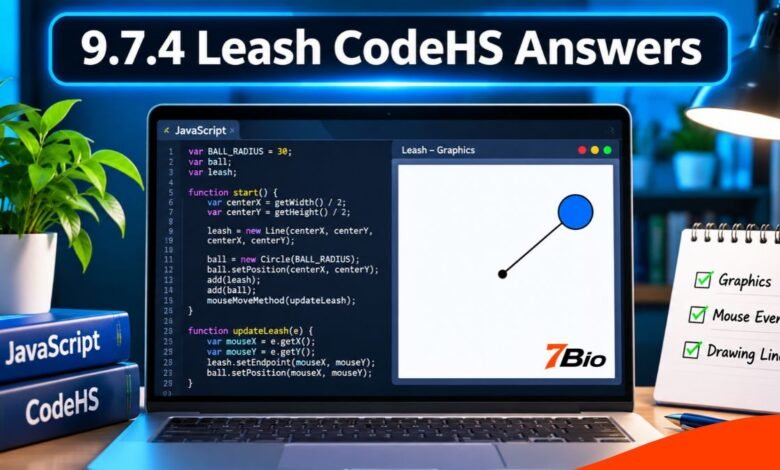
The 9.7.4 Leash CodeHS Answers exercise is a JavaScript programming challenge that teaches students how to connect a moving circle to a line using mouse events. Although the program is relatively short, it combines several important concepts, including coordinates, graphics objects, function callbacks, and interactive movement.
The exercise appears in the Drawing Lines lesson of certain versions of the CodeHS Introduction to Computer Science in JavaScript curriculum. Students must create a ball connected to a line, with one endpoint fixed at the center of the canvas while the ball follows the mouse.
This guide explains the programming logic, provides a reference implementation, and shows how to identify common errors without relying on unexplained code.
What Is the 9.7.4 Leash Exercise in CodeHS?
The Leash exercise is an introductory JavaScript graphics activity that shows how multiple graphical objects can respond to the same mouse event.
Imagine a ball attached to a stationary point with a flexible line. When the user moves the mouse, the ball follows the pointer. The connecting line changes its direction and length while remaining attached to its original starting position.
The program needs to manage three essential elements: a fixed anchor point, a movable ball, and a connecting line.
The main programming challenge is ensuring that the circle’s center and the line’s moving endpoint always use identical coordinates.
Why Is the Exercise Called 9.7.4?
In the CodeHS Introduction to Computer Science in JavaScript (Golden) 2022 curriculum, the exercise appears in Unit 9, Lesson 7, as activity 4.
Unit 9 covers Animation and Games, while Lesson 9.7 focuses on Drawing Lines.
Other CodeHS curriculum editions can use different exercise numbers. Students should match the activity title and instructions rather than relying entirely on the numbering.
9.7.4 Leash CodeHS Answers: JavaScript Code Example
The following reference implementation demonstrates the behavior described in the Leash exercise.
It uses the CodeHS JavaScript graphics library and the documented methods to create circles, draw lines, and respond to mouse movement.
var BALL_RADIUS = 30;
var ball;
var leash;
function start() {
var centerX = getWidth() / 2;
var centerY = getHeight() / 2;
leash = new Line(
centerX,
centerY,
centerX,
centerY
);
leash.setColor(Color.black);
add(leash);
ball = new Circle(BALL_RADIUS);
ball.setPosition(centerX, centerY);
ball.setColor(Color.yellow);
add(ball);
mouseMoveMethod(updateLeash);
}
function updateLeash(e) {
var mouseX = e.getX();
var mouseY = e.getY();
leash.setEndpoint(mouseX, mouseY);
ball.setPosition(mouseX, mouseY);
}
Important: This is an educational reference implementation, not a verified copy of an official CodeHS answer key. It has not been tested against the assignment’s automated grader. Your classroom version may specify particular colors, sizes, names, or other requirements.
Understanding How the JavaScript Solution Works
The easiest way to understand the program is to separate the initial setup from the actions that happen when the mouse moves.
Creating the Ball and Leash
The program begins by declaring three variables:
BALL_RADIUS defines the circle’s size, while ball and leash hold references to the two graphics objects.
These references are declared outside the functions because both start() and updateLeash() need access to the same objects.
The start() function creates the line and circle when the program begins.
The line uses the Line() constructor, which takes four coordinates representing its start and end points.
Initially, all four coordinates refer to the canvas center. The ball is positioned at the same point.
The objects are then displayed through the add() method.
Registering Mouse Movement
The following instruction makes the program interactive:
mouseMoveMethod(updateLeash);
This registers updateLeash as the function CodeHS should call whenever the mouse moves.
Notice that the function name does not have parentheses.
Writing updateLeash() instead would attempt to execute the function immediately rather than register it as a callback.
Updating the Ball’s Position
Inside updateLeash(e), the program reads the mouse coordinates using:
e.getX() and e.getY()
These values identify the mouse pointer’s current horizontal and vertical positions.
The instruction ball.setPosition(mouseX, mouseY); moves the existing circle to that position.
You don’t need to create another circle each time the mouse moves.
Keeping the Line Attached
The connecting line changes through:
leash.setEndpoint(mouseX, mouseY);
This method updates the line’s ending coordinates without changing its starting point.
Because the circle receives the same coordinates, the end of the line remains at the circle’s center.
That shared coordinate relationship creates the leash effect.
Understanding the Coordinate System
CodeHS JavaScript graphics uses a two-dimensional coordinate system.
The X coordinate represents horizontal position, while Y represents vertical position. On the standard graphics canvas, the top-left corner is the origin.
Moving right increases X. Moving down increases Y.
Consider an illustrative canvas measuring 400 by 300 pixels. Its center is located at (200, 150).
The following table shows how the leash should behave when the pointer moves.
| Mouse position | Fixed anchor | Ball centre and line endpoint |
|---|---|---|
| (200, 150) | (200, 150) | (200, 150) |
| (80, 60) | (200, 150) | (80, 60) |
| (350, 100) | (200, 150) | (350, 100) |
| (120, 250) | (200, 150) | (120, 250) |
The first endpoint stays fixed throughout the example. Only the second endpoint changes.
This illustrates an essential distinction between absolute coordinates and movement offsets. Instead of shifting the entire line by a distance, the program assigns its endpoint an exact position.
Common 9.7.4 Leash Coding Errors and Solutions
A program can contain valid JavaScript but still behave incorrectly. Several common problems are particularly relevant to this exercise.
The Ball Does Not Follow the Mouse
When the ball stays stationary, the first thing to check is mouse event registration.
Confirm that mouseMoveMethod() receives the correct function name. The registered function must also accept the event parameter and use it to retrieve pointer coordinates.
Check whether the circle was actually created before the first mouse event occurs.
The Line Moves but the Ball Does Not
This usually means the callback updates the line without updating the circle.
Both graphical objects need to receive the same coordinate pair.
Verify that the callback includes ball .setPosition (mouseX, mouseY) using values obtained from the current event.
The Entire Line Moves Around
The move() and setEndpoint() methods perform different operations.
Calling move(dx, dy) shifts the entire line by a horizontal and vertical offset.
Calling setEndpoint(x, y) changes only the line’s ending position.
For a leash with a fixed anchor, updating the endpoint is the appropriate approach.
The Ball Leaves Multiple Copies Behind
If movement produces a trail of circles, inspect whether the event handler contains new Circle().
Creating a new graphics object for each movement event is unnecessary.
Instead, create one circle during setup and repeatedly modify its position.
The Program Reports an Undefined Variable
A scope problem can occur when a variable is declared inside one function, but another function can’t access it.
Declare shared object variables in a scope accessible to both the setup and event-handler functions.
JavaScript is also case-sensitive. For example, ball, Ball, and BALL are different identifiers.
The Line Appears in Front of the Circle
Graphics layering determines which object appears on top when shapes overlap.
In the reference example, the line is added before the circle, so the ball can visually cover the endpoint.
If the classroom exercise specifies a particular visual arrangement, confirm that the objects appear in the intended order.
How to Test the Leash Program Correctly
Testing is an important part of completing the exercise because a program that runs without errors may still produce incorrect graphics.
Begin by running the code and checking the initial canvas.
The circle should appear at the center. The line may initially be difficult to see because its starting and ending points occupy the same position, giving it zero length.
Next, move the mouse horizontally and vertically.
The circle should follow the pointer, while the line extends from the original center to the moving circle.
Try moving towards all four corners of the canvas. The line should rotate and change length without losing its fixed anchor.
Finally, move the pointer back toward the center. As the ball approaches the anchor, the visible line becomes shorter.
If the program behaves correctly but an automated assessment does not accept it, compare the implementation against the exact activity instructions. Check specified constants, function requirements, colors, and other details rather than assuming visual correctness guarantees acceptance.
Why Understanding Mouse Events Matters
The Leash exercise introduces a programming technique called event-driven programming.
In an event-driven program, actions happen in response to specific events instead of requiring a continuously running loop to check for changes.
Here, the relevant event is mouse movement.
When CodeHS detects that event, it calls the registered function and provides information about the pointer’s position.
The callback then updates the graphical objects.
This approach is useful because the program creates its graphics once and changes only what needs updating.
The same general idea supports interactive drawing applications, pointer-controlled games, draggable interface elements, and visual demonstrations.
Learning how callbacks work provides a foundation for understanding more advanced JavaScript interactions.
How to Improve Your Problem-Solving Skills
Completing a programming assignment becomes easier when you understand what each instruction contributes to the finished result.
For the Leash activity, a useful approach is to build the program in stages.
First, create a stationary line and circle. Check that both objects start in the intended positions.
Next, register a mouse handler and confirm that it responds to pointer movement.
Then update the circle’s position independently.
Once that works, update the line’s endpoint using the same coordinates.
This separates the problem into manageable parts and makes errors easier to locate.
After completing the required assignment, students can experiment with alternative colors or starting points in a separate practice version.
These exercises help reinforce the relationship between variables, objects, and events without complicating the original task.
FAQs
What are 9.7.4 Leash CodeHS Answers?
They are explanations or example solutions for a CodeHS JavaScript graphics exercise in which a circle follows the mouse while remaining connected to a line with a fixed starting point. Public examples are learning references, not official answer keys.
Which JavaScript functions are needed for the Leash exercise?
The main graphics operations include new Circle(), new Line(), setPosition(), setEndpoint(), and mouseMoveMethod(). The program also uses the event methods getX() and getY().
Why does my CodeHS leash disappear?
The line may be invisible when both endpoints occupy the same location. If it disappears after movement, check whether the program removes the object, creates unnecessary replacements, or fails to update its endpoint correctly.
Does the Leash exercise require a loop?
The basic exercise does not require a manually written loop. CodeHS calls the registered mouse handler when the pointer moves, allowing the program to update the graphics in response.
Can the same Leash code work in every CodeHS course?
Not necessarily. CodeHS offers multiple courses and curriculum editions. An example may demonstrate the right programming technique but differ from specific classroom requirements. Always compare it with the assigned exercise.
Final Takeaway
The 9.7.4 Leash CodeHS Answers exercise demonstrates how a simple interactive graphics program can teach several fundamental JavaScript concepts.
The essential technique is straightforward: create a circle and line, keep the line’s starting point fixed, register a mouse movement callback, and update the circle and line endpoint using identical coordinates.
Understanding why these instructions work is more valuable than memorizing a particular solution.
By practicing graphics positioning, event handling, and systematic debugging, students build skills that can be applied to more complex programming activities.
The reference code provides a useful learning example, but the assigned CodeHS instructions remain the final standard for completing the exercise.