myolsd: Complete Login Guide, Features and Easy Troubleshooting Tips
Understand how the Olentangy student portal works, where to sign in safely, and how to access essential school resources.

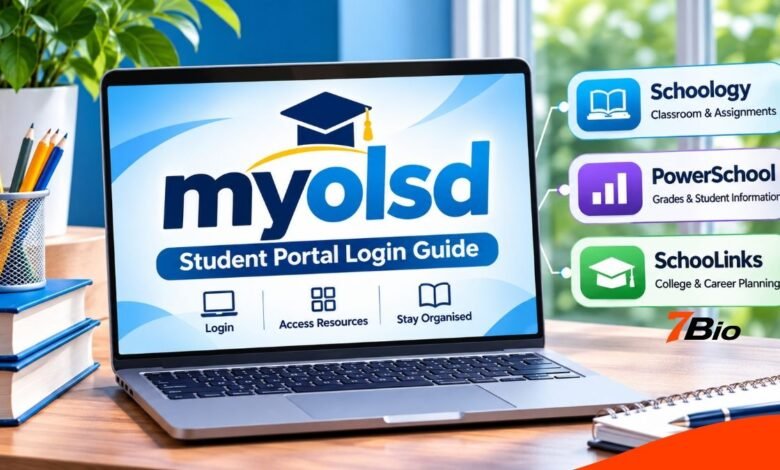
The myolsd portal is the online student access system used by Olentangy Local School District in Ohio, United States. Through its ClassLink-powered sign-in page, students can reach educational applications, digital classroom resources, and other school services associated with their accounts.
Rather than requiring students to search separately for every learning platform, the portal provides a central starting point for approved applications. These include tools to access classroom assignments, review academic information, and prepare for future educational opportunities.
Understanding how the system works is especially useful for students signing in for the first time, families learning about the district’s technology services, and anyone having trouble accessing a school account.
This guide explains the official login process, the differences between key connected platforms, common troubleshooting methods, and the security practices that help protect student information.
What Is myolsd?
myolsd is the name used for Olentangy Local School District’s online student portal. It serves as an entry point to educational resources through ClassLink LaunchPad, a platform that brings multiple applications together behind an organized sign-in experience.
Olentangy Local School District operates public schools in central Ohio. Its digital learning resources support classroom instruction and allow students to work with educational materials beyond the traditional classroom.
The portal is not a standalone digital classroom or student records system. Instead, it helps users reach the separate applications that perform those functions.
For example, students may open Schoology to work with course materials or PowerSchool to access relevant student information. The actual features available depend on the application, the student’s account, and the district’s configuration.
This distinction matters because a student who cannot find an assignment may need to open Schoology rather than look for it directly on the ClassLink dashboard.
How to Access the Official myOLSD Login Page
The safest way to find the login page is through the official Olentangy Local School District website. The district includes a myOLSD Portal option within its Students section, which directs users to the district’s ClassLink LaunchPad.
Students can follow these steps:
- Open a current web browser on a computer, Chromebook, or compatible mobile device.
- Visit the official Olentangy Local School District website.
- Find the Students section in the website navigation.
- Select the option labeled myOLSD Portal.
- Wait for the ClassLink sign-in page to load.
- Enter the school-issued account details or use an approved authentication option.
- Complete any additional verification requested by the sign-in system.
After successful authentication, the student should reach the applications and resources assigned to their account.
The login page may change, so users should follow the current instructions from their school rather than relying on outdated screenshots.
Students who have never received login details should contact their teacher or school technology staff. A district account is not the same as a public account that anyone can create independently.
Understanding the ClassLink Dashboard
ClassLink LaunchPad powers the district’s central student sign-in experience. It makes approved educational applications easier to find and access.
Following authentication, students may see a collection of application icons. Selecting an icon opens the corresponding service, although some applications may require additional authentication or permissions.
The dashboard is particularly useful when students regularly work with different systems during a school day.
A student might need Schoology for classroom activities, PowerSchool for academic information, and SchooLinks for college or career planning. ClassLink provides a convenient starting point for reaching these separate resources.
However, not every student necessarily sees the same applications. Access can depend on grade level, school, assigned courses, and account permissions.
If an expected application is missing, students should check with their teacher or the school’s technology support team before using an unrelated website.
Important Educational Platforms Available Through the Portal
Several systems support Olentangy’s digital learning environment. Understanding their individual purposes can prevent confusion.
Schoology: Digital Classroom and Assignments
Schoology is the district’s learning management system. Teachers use it to organize lessons, provide learning materials, and assess student understanding.
Students can use the platform to review course information, find assignments, and follow classroom activities as directed by their teacher.
Olentangy specifically directs students to access Schoology through the student portal. Parents have a separate Schoology sign-in route.
PowerSchool: Student Information
PowerSchool is a student information system used for managing academic and administrative records. It supports access to information such as grades and other student records according to user permissions.
Students may access PowerSchool through the district’s educational sign-in environment. Parents can use the district’s designated PowerSchool parent access system.
The district recommends that parents use the PowerSchool website rather than its mobile application because the application may display inaccuracies that local administrators cannot correct.
SchooLinks: College and Career Planning
SchooLinks supports students who are exploring educational and career opportunities. The platform supports postsecondary planning, career exploration, and related school activities.
Students access SchooLinks through their district portal. Depending on their grade level and account access, they may use features connected with college searches, career goals, experience tracking, and transcript information.
These three services perform different tasks. Understanding the differences makes it easier to choose the correct application.
How Parents Can Access Student Information
One common misunderstanding is that parents must use the same login dashboard as their children.
Olentangy provides different access methods for parents and students. Parents seeking grades, records, or classroom information should use the district’s parent resources rather than trying to sign in with a student’s personal credentials.
The district provides information about creating and using a PowerSchool parent account, including guidance on accessing student records.
Parents can also use Schoology’s parent access features to follow classroom information and receive notifications. Access to a child’s Schoology account may require a code supplied through the school.
Keeping parent and student accounts separate helps maintain appropriate permissions and reduces the risk of accidentally changing or accessing information through the wrong account.
Families should contact their child’s school when they need help setting up an account, access codes, or help identifying the appropriate service.
Common myolsd Login Problems and Their Solutions
Even a well-organized school portal can occasionally have technical issues. Login problems may involve incorrect account information, browser behavior, network connectivity, or permissions.
The appropriate solution depends on what happens during the sign-in attempt.
Incorrect Username or Password
If the portal rejects account details, check that the username has been entered correctly and that no accidental spaces have been added.
Pay attention to capitalization where relevant, keyboard settings, and saved passwords that may no longer be current.
Repeatedly trying different passwords can make troubleshooting harder and may trigger account security restrictions. If you don’t have the correct credentials, ask the school or authorized technology support team for help.
Login Page Does Not Load
A page that fails to open does not automatically mean the student’s account has been disabled.
Check the internet connection, refresh the page once, and try opening the portal through the district’s official website.
If the browser is outdated, updating it may resolve compatibility problems. Students can also use ClassLink’s browser-check resources when appropriate.
Dashboard Opens, but an Application Is Missing
Students sometimes sign in successfully but cannot find a particular learning platform.
This can happen because access is determined by account assignments, school settings, or the availability of individual services.
Check whether the application has a different name or appears elsewhere in the dashboard. If it remains unavailable, contact the teacher or technology staff responsible for the account.
An Application Requires Another Login
Opening the central dashboard does not necessarily guarantee that every connected service will authenticate without another prompt.
If an application requests additional credentials, follow the district’s approved instructions. Do not enter a school password into an unfamiliar form or website.
Portal Works on One Device but Not Another
When login succeeds on one device but fails elsewhere, browser settings, stored sign-in sessions, or device restrictions may be involved.
Try updating the browser, restarting it, or using an approved alternative. On a shared device, check that another person’s school account is not already signed in.
Avoid resetting a school-managed device or changing security settings without permission from school technology staff.
How to Keep a School Portal Account Secure
School accounts can contain information about educational activities and access to personal records. Protecting those accounts is an essential part of responsible digital learning.
Students should use only district-approved sign-in pages and keep their credentials private. Passwords should not be shared with classmates, unrelated websites, or anyone claiming to offer unofficial account assistance.
It is also useful to recognize that websites containing the words “myOLSD” are not automatically operated or endorsed by the school district.
A third-party guide may provide general information, but students should always reach the actual login system through the district’s official website.
When using a shared computer, sign out after completing schoolwork. Avoid saving school passwords on publicly accessible devices, and report suspicious messages or unexpected account activity to the school’s technology team.
Parents can reinforce these habits by teaching children how to recognize legitimate school communications and questionable password requests.
Practical Ways Students Can Use the Portal Effectively
A central student dashboard is most useful when it becomes part of an organized learning routine.
At the beginning of a school day, students can sign in and identify which applications are needed for their classes. They can then review course announcements, locate assigned work, and prepare the materials required for upcoming lessons.
After school, they can return to the appropriate learning application to check assignments or review teacher-provided materials.
Older students may also benefit from checking planning resources such as SchooLinks when researching career interests, college requirements, or educational pathways.
The key is to remember that the portal provides access, while individual applications provide the actual tools.
Students should also follow their teachers’ instructions, since the digital resources used for one class may differ from those used in another.
What Makes the Portal Useful for Digital Learning?
A centralized login environment can reduce the inconvenience of navigating multiple educational websites independently.
For students, the main advantage is organization. Instead of remembering where each application is located, they have a clear route to district-approved resources.
Teachers benefit when students understand where to find the applications required for lessons and assignments.
Families also benefit from understanding how the district’s learning and information systems connect, even though parent accounts may use separate sign-in pages.
There are limitations, however. Having a functioning portal does not guarantee that every connected application is available at all times, and access permissions can vary.
The technology works best when combined with clear teacher instructions, reliable account support, and appropriate digital safety practices.
Where to Get Official Technical Support
If basic troubleshooting does not resolve a problem, contact Olentangy’s authorized technology support.
The district’s Technology Department provides a Service Desk for technical difficulties involving school systems and devices.
The published helpdesk telephone number is 740-657-4357 (HELP). The district also provides an official helpdesk email address through its Technology Department page.
Students should explain what happens when they attempt to sign in, including whether the problem occurs before reaching the dashboard or after selecting an application.
Useful details include the device being used, the browser, the approximate time the problem started, and the wording of any error message.
Never include a password in a support email or screenshot.
FAQs
Is myolsd an official school portal?
Yes. MyOLSD is the name used for Olentangy Local School District’s student portal, which connects to ClassLink LaunchPad. Students should access it through the district’s official website to avoid confusing it with independently operated informational websites.
Can students access Schoology through myolsd?
Yes. Olentangy directs students to open Schoology through the district student portal. Schoology is used for classroom materials, lessons, assignments, and related learning activities.
Do parents use the same account as students?
Parents generally use designated parent access methods for services such as PowerSchool and Schoology. They should not assume that the student dashboard is their own parent login system.
What should I do if I forget my school login password?
Contact your school or the district’s authorized technology support team for approved account recovery instructions. Avoid unofficial password-reset websites or anyone requesting your existing password.
Can I access the portal from home?
The district’s online student resources are designed to support access beyond the classroom. Students can sign in using a compatible device and internet connection, although some services may have additional restrictions or requirements.
Final Takeaway
myolsd provides Olentangy students with a convenient starting point for accessing school-approved digital learning applications. Through its ClassLink-based environment, students can access services such as Schoology, PowerSchool, and SchooLinks based on their account permissions.
The most important steps are to use the district’s official login route, understand which application handles each task, and contact authorized school staff when account problems occur.
With those basics understood, students and families can make better use of the district’s digital resources while maintaining responsible account security.