
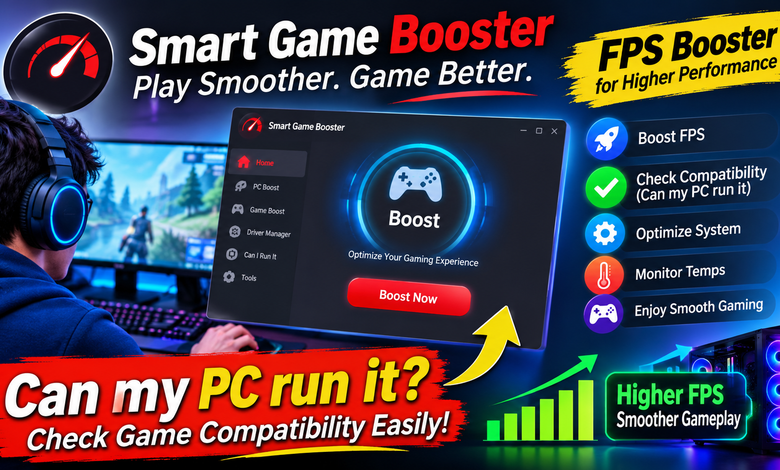
Getting better performance from a gaming PC does not always mean purchasing expensive hardware. Sometimes, unnecessary background applications, outdated drivers, or unsuitable graphics settings can affect gameplay. Before upgrading your computer, it is worth checking what is limiting its performance. Smart Game Booster brings several gaming utilities together, including an FPS Booster and a compatibility checker that helps answer the important question: Can my PC run it?
What Makes Smart Game Booster Useful for PC Gamers?
Smart Game Booster is a Windows application designed to help users manage gaming performance and examine their computer’s capabilities. It includes tools for system optimization, game compatibility checking, driver management, and performance monitoring.
Instead of switching between multiple utilities, gamers can explore several maintenance and gaming-related functions through one application.
One of its main features is PC Boost, which helps manage selected background processes and apply supported system optimizations before launching a game. This can be useful when unnecessary applications are consuming resources that could otherwise be available during gameplay.
Improve Gaming Conditions With an FPS Booster
Background applications can consume processor capacity and memory even when they are not actively being used. On computers with limited resources, this activity may contribute to performance problems.
An FPS Booster helps users manage selected applications and system settings to prepare the computer for gaming. Smart Game Booster provides optimization controls that can help reduce unnecessary background activity.
Key benefits include:
- Background process management: Close selected unnecessary applications before starting a game.
- System optimization: Access supported performance adjustments through a centralized interface.
- Driver management: Check and update compatible hardware drivers.
- Game maintenance: Access available tools for managing and optimizing game files.
- Performance monitoring: Examine FPS readings and hardware temperatures while playing.
These features can make gaming preparation easier, although an FPS Booster cannot guarantee higher frame rates on every computer. Actual improvements depend on hardware capabilities and the cause of the performance problem.
Can my PC run it? Check Game Compatibility Before Downloading
Before downloading a demanding game or purchasing a new title, it is important to check whether your computer meets the required specifications. So, Can my PC run it is a question every gamer should consider before installing a game that may place heavy demands on their hardware.
Smart Game Booster includes a Can I Run It compatibility feature that helps users compare their PC specifications with the minimum and recommended requirements of selected games.
This feature can help identify whether the processor, graphics card, RAM, and other system components meet a game’s published requirements.
Why Use the Can my PC run it Feature?
Avoid unnecessary purchases: Check game requirements before spending money on a title that may not work properly on your computer.
Identify hardware limitations: Find out whether your processor, graphics card, or installed memory falls below the game’s requirements.
Plan future upgrades: Use compatibility information to understand which components may need improvement.
Discover suitable games: Explore games that are more appropriate for your current computer configuration.
One important point is that meeting minimum requirements does not guarantee smooth gameplay. Resolution, graphics settings, game optimization, and system temperatures can all influence actual FPS.
Monitor FPS and Hardware Activity During Gameplay
Guessing why a game becomes slow can make troubleshooting frustrating. Performance monitoring provides more useful information about what happens while a game is running.
Smart Game Booster offers an in-game monitoring HUD that can display FPS and hardware temperature information. These readings help users observe system behaviour during different gaming situations.
For example, if a game experiences frame-rate drops while GPU temperatures increase, checking the cooling system may be worthwhile. Similarly, high CPU or memory usage can indicate that additional applications are consuming system resources.
By examining these details, gamers can make more informed decisions about which settings to adjust.
How to Get Started With Smart Game Booster
Installing and exploring the application is relatively straightforward.
- Visit the official Smart Game Booster website and download the Windows installer.
- Install the application by following the on-screen instructions.
- Open the software and explore its available gaming tools.
- Select a game and review the PC Boost options.
- Open the compatibility checker and examine your system against the game’s requirements.
- Apply suitable optimization settings and launch your game.
- Monitor FPS and hardware temperatures during gameplay.
Always review recommended changes before applying them, particularly when the software suggests closing background processes.
Free and Premium Options
Smart Game Booster offers different editions for users with different requirements. Its Free version provides access to basic gaming optimization and selected maintenance features, while paid editions offer additional capabilities.
Before purchasing an upgrade, compare the available plans and check which features are included. This helps you decide whether premium functionality is necessary for your gaming setup.
Final Verdict
Smart Game Booster brings several useful gaming utilities into one Windows application. Its FPS Booster functionality helps users manage selected system resources, while the Can my PC run it feature provides a convenient way to investigate game compatibility.
For gamers who want to understand their computer’s capabilities, monitor gameplay, and manage unnecessary background activity, Smart Game Booster is worth exploring. Combining compatibility checks with sensible optimization settings can help players make better use of their existing hardware.