
sign in securus: Best Login & Password Reset Guide
Learn how to access your Securus account, reset your password, manage communication services, and resolve common sign-in problems.

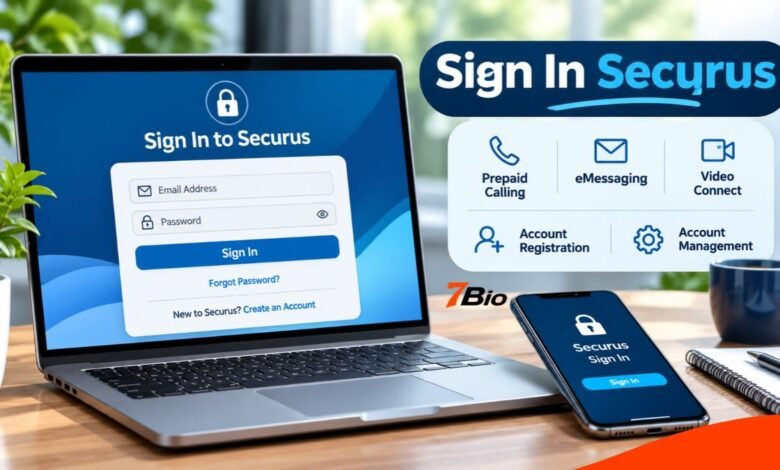
To sign in Securus, start by accessing the official Securus Technologies website or mobile app. Securus provides communication services that help people stay connected with incarcerated family members and friends at participating correctional facilities in the United States.
Through a registered account, users can access supported services such as prepaid calling, electronic messaging, video communication, and account funding. However, available features depend on the correctional facility and the services it enables.
Understanding the correct login process is particularly useful when you are accessing the platform for the first time, recovering an account, or attempting to arrange communication with a loved one.
This guide explains how Securus sign-in works, how to register, what to do when a password fails, and how to manage your account securely.
What Is Securus Technologies?
Securus Technologies is a US-based provider of communication and technology services for correctional facilities. Its consumer platform is designed to help approved family members and friends communicate with incarcerated individuals through services offered at participating institutions.
Rather than operating as a conventional social messaging platform, Securus works within correctional facility policies. Different institutions may offer different communication methods, pricing arrangements, approval requirements, and account restrictions.
The company’s consumer services include AdvanceConnect prepaid calling, Securus Debit funding, eMessaging, and Video Connect. Some facilities also support additional communication options.
An online account provides a convenient way to access and manage these services, although creating an account does not automatically guarantee that every feature will be available.
How to Sign In Securus Online
Existing users can generally access their accounts through the official Securus consumer website.
Step 1: Open the Official Securus Website
Launch a modern web browser such as Google Chrome, Microsoft Edge, Firefox, or Safari.
Visit the official Securus Technologies consumer website at securustechnologies.com and select the sign-in option. The company directs consumer account holders to its Securus Online service at securustech.online.
Checking the website address matters because unofficial login pages may imitate legitimate services.
Step 2: Find the Sign-In Page
Select Sign In or Sign In / Sign Up, depending on the page displayed.
You should reach the consumer account login area. Make sure you are using the family-and-friends portal, not a separate system intended for correctional staff or administrators.
Step 3: Enter Your Login Credentials
Enter the email address associated with your Securus Online account and your password.
Check for typos, extra spaces, and incorrect capitalization before proceeding.
Step 4: Complete the Login
Select the sign-in button to submit your details.
If your credentials are recognized and there are no account restrictions, you should be able to access your account dashboard.
Step 5: Choose Your Communication Service
Once logged in, locate the service you want to manage.
Depending on your account and the relevant correctional facility, you may be able to view your AdvanceConnect balance, access messaging, manage contacts, or arrange video communication.
The exact dashboard layout can change as Securus updates its services.
How to Create a New Securus Account
If you have never used Securus before, you must register before accessing services that require an online account.
Start by opening the official consumer portal and selecting the registration option.
Enter the requested personal and contact information accurately. The registration process may ask for your name, email address, telephone number, and other information needed to set up your account.
You will also need to create login credentials and complete any account verification or security steps presented.
After registration, sign in and select the relevant communication service.
For example, someone who wants to receive prepaid calls may need to establish an AdvanceConnect account and select the appropriate correctional facility.
A person registering for Video Connect may face additional identity verification and facility approval requirements.
Remember: Successfully creating a Securus Online account is not the same as receiving permission to use every communication service.
Sign In Securus Through the Mobile App
The official Securus Mobile app provides another way to manage an account without repeatedly opening the website.
The application is available for supported Android and iOS devices.
To get started, open Google Play or the Apple App Store and search for the official Securus app. Check the developer details carefully before installing anything.
After installation, open the app and select the login option.
Enter your registered email address and password, then complete any requested verification.
Once signed in, the application provides access to supported communication and account-management features.
What Can You Do in the Securus App?
The mobile application supports several useful functions, depending on facility availability and account eligibility.
Users may be able to manage prepaid calling funds, review available balances, access eMessaging, arrange video communication, purchase messaging stamps, and receive notifications.
The app can also let you update payment details, manage contacts, and set up certain account alerts.
For individuals who rely on mobile devices rather than desktop computers, these features can make routine account management more convenient.
Forgot Your Securus Password? How to Reset It
Password difficulties are among the most common reasons someone cannot access an online account.
If your Securus password no longer works, use the official account recovery process instead of repeatedly guessing.
Use the Forgot Password Option
Open the Securus Online login page and look for the Forgot Password option.
Follow the instructions displayed on the recovery screen. You may be asked for the email address associated with your account and additional information to verify your identity.
Depending on the recovery options available for your account, Securus may offer security-question verification or an email-based recovery option.
Follow the instructions provided and create a new password if prompted.
Once the process is complete, return to the login page and try signing in again.
What If the Recovery Email Does Not Arrive?
First, check the spam or junk folder of your registered email account.
Make sure you entered the correct email address and allow sufficient time for delivery.
If the message still doesn’t arrive, contact official Securus customer support instead of using an unfamiliar password-reset service.
Avoid sharing your password or recovery information with anyone claiming they can unlock your account for a fee.
Common Securus Login Problems and Solutions
A failed login does not always mean your account has been suspended. Problems can arise from incorrect credentials, browser settings, connectivity issues, or service-related restrictions.
Incorrect Email Address or Password
A simple typing error can prevent successful authentication.
Check that you are using the email address originally registered with Securus. If you have several email accounts, confirm which one is linked to the service.
If you cannot remember your password, use the official reset process.
Website Not Loading Correctly
If the login page appears blank, fails to load, or displays a browser compatibility message, try updating your browser.
You can also close and reopen the browser, clear relevant cached website data, or test the page using another supported browser.
Avoid clearing saved passwords unless you know how to recover your credentials.
Mobile App Not Working
If the application freezes or closes unexpectedly, check your internet connection and look for an app update.
Restarting the application or your device may resolve temporary software problems.
If the issue continues, consult official support guidance before deleting the app or changing important settings.
Account Access Restrictions
Some account issues require Securus customer service assistance.
If you repeatedly receive an error despite entering the correct details, do not try to bypass security controls.
Contact support and explain the message you see.
Communication Features Are Missing
Signing in successfully doesn’t mean every communication feature will appear.
The facility may not support the requested service, or you may need to enroll, verify your identity, or obtain approval.
Check the relevant correctional facility’s available services before assuming something is wrong with your account.
Understanding Securus Account Services
Securus offers several communication products, and choosing the correct one helps prevent confusion.
| Service | Main Purpose |
|---|---|
| Securus Online | Register and manage a consumer account |
| AdvanceConnect | Fund eligible prepaid calls |
| Securus Debit | Contribute to an incarcerated person’s eligible communication account |
| Securus eMessaging | Exchange supported electronic messages |
| Securus Video Connect | Participate in approved video communication |
| Securus Mobile | Manage supported services on a smartphone |
AdvanceConnect Prepaid Calling
AdvanceConnect allows account holders to fund eligible calls from incarcerated individuals.
Funds are deducted according to the applicable calling arrangements when supported calls are received.
It is important to understand that family members generally cannot directly call a correctional facility and request a connection to an incarcerated individual through this service. The incarcerated individual initiates the outgoing call.
Securus Debit
Securus Debit is an account owned by the incarcerated individual and used for eligible services offered at their facility.
Family members may be able to contribute funds when permitted.
Securus Debit is not the same as a commissary account, and availability or funding restrictions may differ between institutions.
Securus eMessaging
eMessaging allows supported electronic communication between approved participants.
Depending on facility rules, messages may include text, photographs, eCards, or other supported attachments.
Some eMessaging functions use prepaid digital postage known as stamps.
Unlike ordinary personal email, Securus messaging must be accessed through its supported website or application. Communications may also be reviewed under facility policies.
Securus Video Connect
Video Connect provides scheduled video communication where supported.
Registration can involve submitting identity documentation and a personal photograph. The facility may need to approve participation before a session can take place.
Users should review the facility’s requirements and confirm the appointment details before attempting to join a session.
Is Securus Free to Use?
Registering for a Securus Online account does not necessarily mean that every communication service is free.
Prepaid calling, electronic messaging, deposits and video services may involve charges, depending on the institution and the applicable program.
Some facilities offer certain communications at no cost, while others use different billing arrangements.
Prices, transaction fees and available payment methods can change. For this reason, users should review the current terms and pricing associated with their selected facility before purchasing services or adding money.
Avoid relying on an outdated online article for exact charges.
How to Keep Your Securus Account Secure
Protecting your login credentials is essential because your account may contain personal information, contact details, and payment-related settings.
Use a strong, unique password that you do not share with other websites.
Access Securus through its official website or verified mobile application. Avoid unfamiliar links received through unsolicited messages.
Before making payments or submitting identification documents, confirm that the request is part of the legitimate Securus service.
Be especially careful when using a public computer. Sign out after completing your session and avoid saving account credentials on shared devices.
It is also sensible to review your account information periodically and check for transactions or changes you do not recognize.
How to Contact Securus Customer Support
If you cannot resolve a login problem yourself, the official Securus customer support service is the appropriate place to request assistance.
Securus lists the following customer support telephone numbers:
Mobile telephone: 972-734-1111
Landline or international contact: 1-800-844-6591
The company also provides online assistance and a searchable help center through its official consumer website.
Before contacting support, have the email address associated with your account and a description of the problem ready.
Do not provide your password to a customer service representative or anyone contacting you unexpectedly.
FAQs
1. How do I sign in Securus for the first time?
Visit the official Securus consumer website, select the registration option, and create your account using the requested information. After you complete registration, sign in with your registered email address and password.
2. Can I access Securus from my mobile phone?
Yes. Securus offers a mobile application for supported Android and iOS devices. You can also use the consumer website through a compatible mobile browser.
3. Why does Securus say my login information is incorrect?
The problem may involve an incorrect email address, a mistyped password, or an account-related issue. Check your credentials carefully and use the official password recovery option if necessary.
4. Can I use Securus outside the United States?
Some international users may be able to register accounts and access supported services. However, payment options, connectivity, and service availability can depend on location, facility policies, and other requirements.
5. Do I need a separate account for video visits?
You generally begin with a Securus Online account and then enroll in the available Video Connect service. You may need additional identity verification and approval from your correctional facility.
6. What should I do if my account is locked or inaccessible?
Use the official recovery options first. If you still can’t sign in, contact Securus customer support and explain the issue. Avoid third-party unlocking services.
Final Takeaway
Understanding how to sign in Securus makes it easier to manage communication services and resolve routine account difficulties.
The safest approach is to use the official Securus Technologies website or verified mobile application, enter your registered credentials, and follow the instructions for the service you need.
If you have a password issue, start with the official recovery process. If communication features are unavailable, check whether the correctional facility supports them and whether additional approval is required.
Securus can provide a useful connection between incarcerated individuals and their families, but access, features, and costs are governed by the relevant service terms and correctional facility polici.