
9.7.4 leash: A Complete CodeHS Guide to JavaScript Graphics and Mouse Events
Understand how the Leash programming exercise works, how to connect moving objects with lines, and how to avoid common JavaScript mistakes.

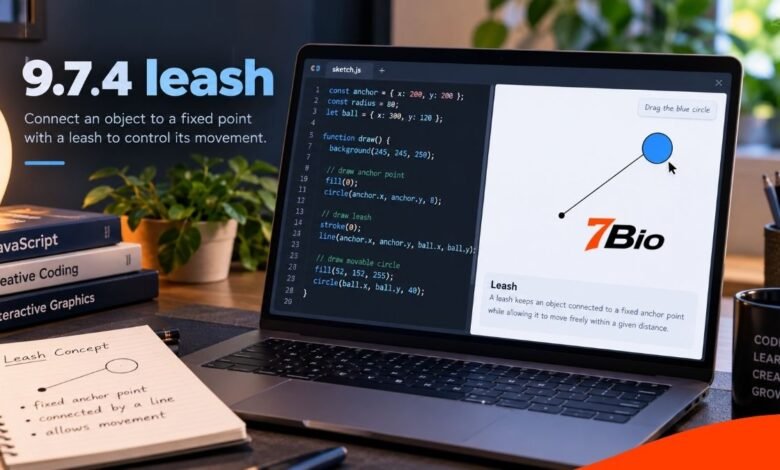
The 9.7.4 leash exercise is a beginner-friendly CodeHS programming activity that teaches students how to combine JavaScript graphics with mouse movement. It appears in the Drawing Lines lesson of the Introduction to Computer Science in JavaScript curriculum.
The basic idea is to draw a line from a fixed point to a circle. As the user moves the mouse, the circle changes position, and the line updates to stay connected. The result resembles a ball attached to a leash.
Although the finished animation looks simple, creating it introduces several essential programming concepts. Students work with coordinates, graphics objects, mouse events, functions, and object references.
Understanding these concepts is more useful than simply copying a completed program. These techniques also support drawing applications, interactive games, and other graphical projects.
What Is 9.7.4 Leash in CodeHS?
9.7.4 Leash is a programming exercise listed in the CodeHS Drawing Lines lesson. It belongs to the Animation and Games unit in certain versions of the introductory JavaScript course.
The exercise introduces interactive graphics, particularly the relationship between a moving circle and a line.
In a typical implementation, the circle follows the mouse pointer while one end of the connecting line remains fixed.
The title describes the visual relationship between the two objects. It does not refer to a physical dog leash, a commercial product, or a JavaScript software version.
Understanding the Exercise Number
The number 9.7.4 identifies a location within a particular CodeHS curriculum.
- 9: Animation and Games unit
- 7: Drawing Lines lesson
- 4: The fourth activity in that lesson
CodeHS also offers other courses and curriculum editions. The same or similar activity may be numbered differently elsewhere.
Students should always compare the instructions in their own CodeHS account before following an example found online.
How Does the Leash Exercise Work?
The main purpose is to make separate graphical objects respond to the same mouse movement.
Imagine a ball attached to a fixed point in the middle of a computer screen. A straight line connects the ball to that position.
When the mouse moves towards another part of the screen, the ball follows. At the same time, the connecting line stretches or changes direction.
Three important actions make this possible.
1. Creating a Circle
A circle represents the movable object.
In the JavaScript graphics library used by the relevant CodeHS course, a programmer can create a circle with the Circle constructor.
The library’s graphical methods can then adjust its size, position, and color.
2. Drawing a Connecting Line
A line connects two coordinate points.
Its starting position stays fixed, while its endpoint changes as the mouse moves.
The Line constructor creates the graphical object, and setEndpoint() lets the program update its end position.
3. Responding to Mouse Movement
JavaScript needs a way to detect user interaction.
CodeHS provides mouseMoveMethod(), which registers a function to run when the mouse moves.
The function receives mouse event information, including the pointer’s coordinates.
Using those coordinates, the program can update both graphical objects so that they move together correctly.
Understanding the JavaScript Graphics Concepts
Several basic programming ideas work together in this activity.
| Concept | Purpose |
|---|---|
| Circle | Creates the movable round object |
| Line | Connects two coordinate positions |
| Coordinates | Identify locations on the canvas |
| Mouse events | Detect pointer movement |
| Functions | Organise instructions into reusable blocks |
setPosition() | Changes the circle’s position |
setEndpoint() | Updates the line’s ending point |
add() | Displays a graphics object on the canvas |
The important distinction is that creating a graphics object and changing its position are separate operations.
A circle can exist in program memory without being visible. The add() function places it on the graphics canvas.
Once an object exists, its position can be changed without repeatedly creating new objects.
Example: Building an Interactive Leash Effect
The following original educational example illustrates the central graphics technique. This is not an official CodeHS answer or a guarantee that every classroom version has identical requirements.
var ball; var leash; function start() { var centerX = getWidth() / 2; var centerY = getHeight() / 2; leash = new Line( centerX, centerY, centerX, centerY ); leash.setColor(Color.black); add(leash); ball = new Circle(25); ball.setPosition(centerX, centerY); ball.setColor(Color.blue); add(ball); mouseMoveMethod(moveBall); } function moveBall(e) { var x = e.getX(); var y = e.getY(); ball.setPosition(x, y); leash.setEndpoint(x, y); }
How the Example Works
The start() function creates the objects when the program begins.
First, the program calculates the canvas center using getWidth() and getHeight().
It creates a line whose two endpoints initially share the same position. The program then creates a blue circle at that location.
The mouse-movement handler is registered using mouseMoveMethod(moveBall).
Whenever the mouse moves, the moveBall() function reads the pointer’s coordinates and updates the circle and line.
Because both objects use the same coordinates, the line remains visually attached to the center of the moving circle.
The exact circle size, color, and other settings should follow the student’s assigned instructions.
Why Coordinates Matter
Computer graphics use coordinates to identify positions on a drawing surface.
The horizontal position is the X coordinate, and the vertical position is the Y coordinate.
In the usual CodeHS canvas coordinate system, the origin is located at the upper-left corner. X increases towards the right, and Y increases downwards.
For example, a mouse position of (150, 100) describes a point 150 units from the left edge and 100 units below the top edge.
The Leash activity uses these coordinates to keep different graphics objects aligned.
A common misconception is that the exercise necessarily requires complicated distance calculations. The basic fixed-anchor version can be created by directly updating positions. You only need distance formulas if a particular assignment adds movement restrictions.
Common 9.7.4 Leash Errors and How to Fix Them
Beginning programmers often understand what their animation should do but struggle with small implementation errors.
The Circle Does Not Move
Check that the mouse handler is registered correctly.
Writing mouseMoveMethod(moveBall) passes the function as a callback. Adding parentheses after the function name would attempt to call it immediately instead.
The Line Does Not Follow the Circle
Make sure the line’s endpoint receives the same X and Y coordinates as the circle.
If one object uses outdated values, the connection may appear broken.
The Screen Appears Empty
Confirm that the graphics objects have been added using add().
Also check whether their initial coordinates are within the visible canvas.
The Program Creates Too Many Shapes
A mouse handler should normally update existing objects rather than create a new circle and line during every movement.
Repeatedly adding new objects can leave unwanted graphics on the screen.
An Undefined Variable Error Appears
Check variable names and scope.
If a function needs to access an object created elsewhere, that object must be stored in a variable accessible to the function.
What Skills Can Students Learn?
The exercise provides a practical introduction to event-driven programming.
Instead of running every instruction continuously, the program responds when the user acts.
This teaches students how functions can react to events, how objects retain information, and how multiple graphical elements can share coordinate data.
These foundations also apply to drag-and-drop interfaces, drawing tools, interactive diagrams, and simple browser-based games.
Students also develop debugging skills by checking how changes in one part of a program affect the visual result.
Tips for Completing the Exercise Successfully
Begin by confirming that the circle and line appear correctly before adding mouse interaction.
Next, verify that the mouse handler runs and receives valid coordinates.
Once movement works, check the connection between the circle and the line.
Avoid adding unnecessary features before the required behavior is complete. Extra animation, color changes, or complex movement rules can make a basic exercise harder to debug.
Most importantly, use the instructions displayed in the assigned CodeHS lesson as the final reference. Public examples can explain programming concepts, but they may not satisfy every requirement in a particular classroom.
FAQs
1. What is 9.7.4 leash?
It is a CodeHS JavaScript graphics exercise in the Drawing Lines lesson. The activity helps students understand how to move graphical objects, position coordinates, and update lines.
2. Which programming language is used?
The exercise appears in CodeHS’s introductory JavaScript curriculum and uses its graphics library. Other CodeHS courses may organize similar activities differently.
3. Why is my leash line not moving?
A common cause is not updating the existing line’s endpoint. Check that the mouse handler calls setEndpoint() with the current pointer coordinates.
4. Can beginners complete the exercise?
Yes. It builds on introductory concepts such as variables, functions, graphics objects, and mouse events. Students who understand those concepts can approach it step by step.
5. Is there one official solution for every CodeHS Leash exercise?
The public course listings confirm the activity exists, but they don’t provide a single universal answer for every course edition. Students should use their assigned instructions and any guidance supplied by their teacher.
Final Takeaway
The 9.7.4 leash activity shows how a small graphics program can introduce meaningful JavaScript programming skills.
By connecting a movable circle to a line and responding to mouse events, students learn how coordinates, object positioning, and event handlers work together.
The best approach is to understand each part independently, build the interaction gradually, and test the finished result against the original assignment instructions.
With these foundations, students can progress towards more sophisticated interactive graphics projects with greater confidence.